audiobookshelf
Login
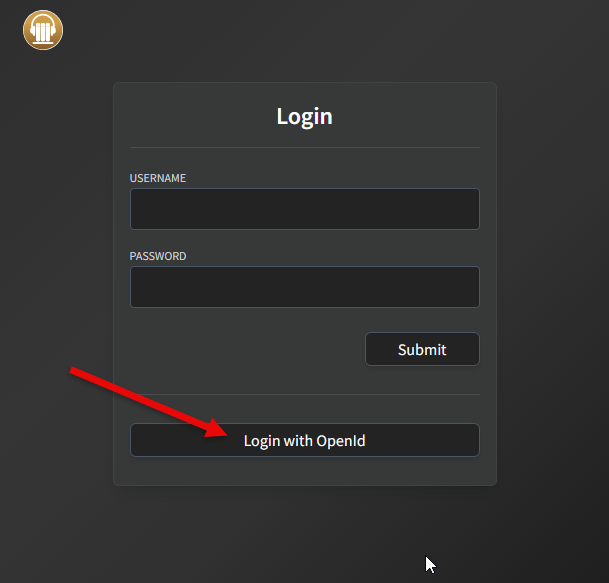
- Go to audiobookshelf.
- Click
Login with OpenId.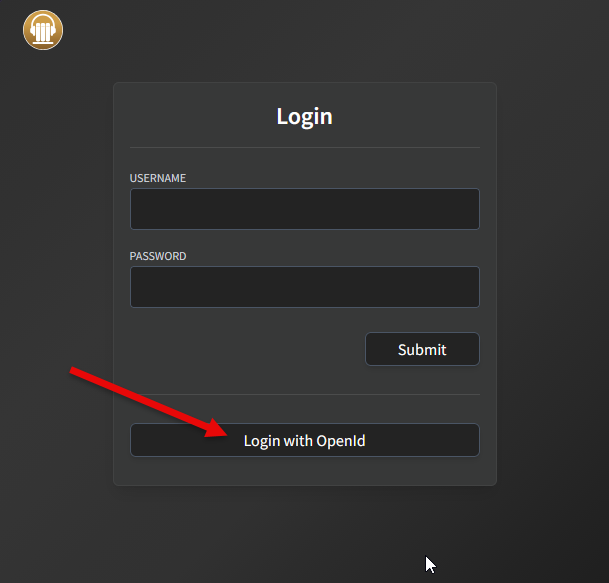
- Enter provided username and password.
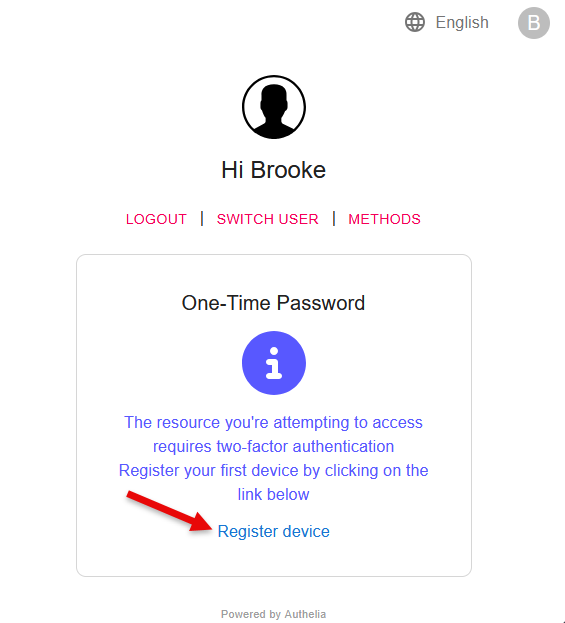
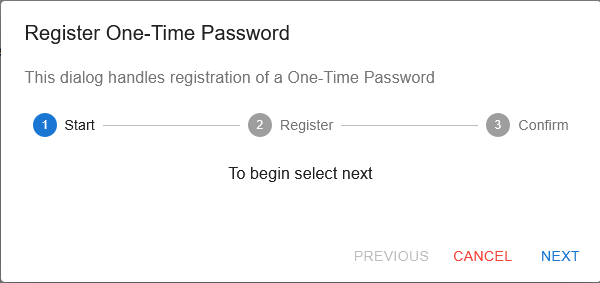
- If your user has not created a 'One-Time Password', you'll see this:
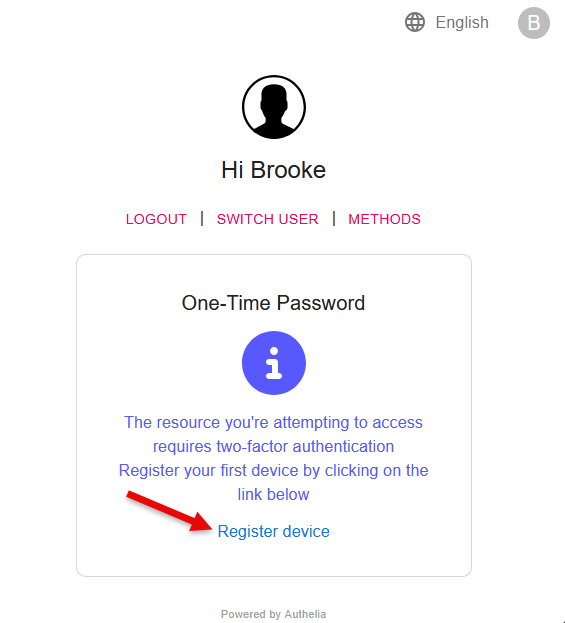
- Click
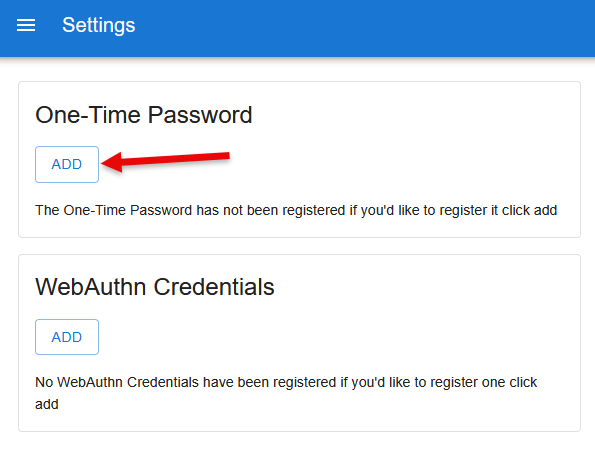
Register device. - Click
ADDunderOne-Time Password.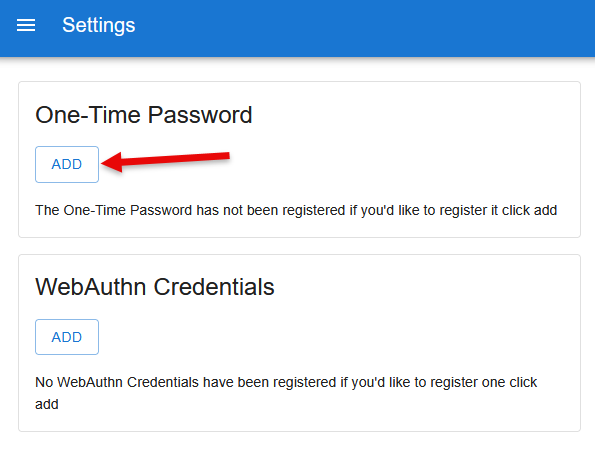
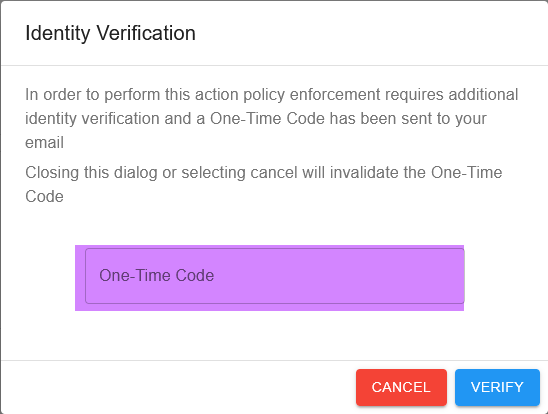
- You should receive an email from Authelia with a one-time code in it; enter it here:
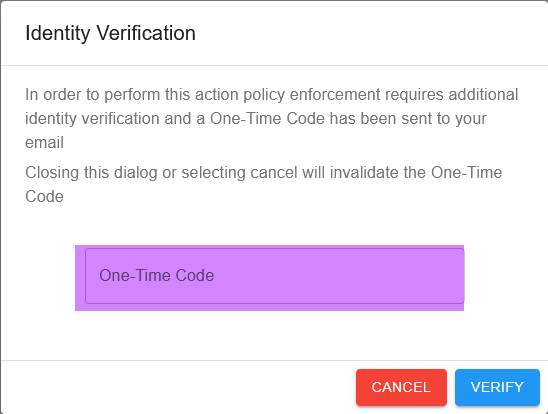
- Click
NEXT.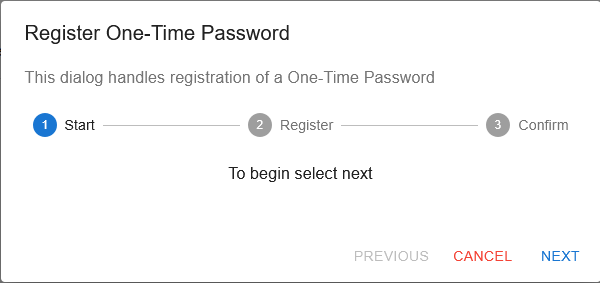
- Use your preferred method to either scan the QR code or copy the secret to your authenticator (Google Authenticator, Authy, Bitwarden, etc.).
- Click
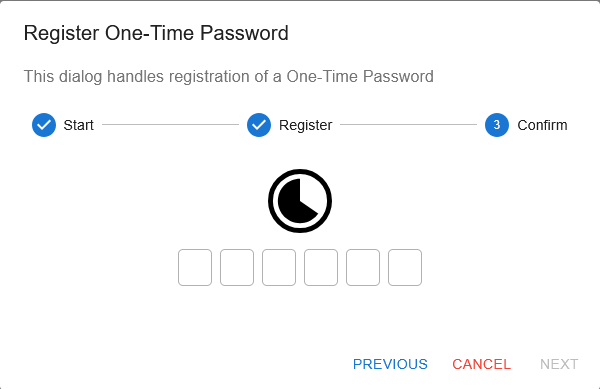
NEXT. - Enter the generated one-time password from your authenticator to verify that it works. It may look like it isn't doing anything for a few seconds.
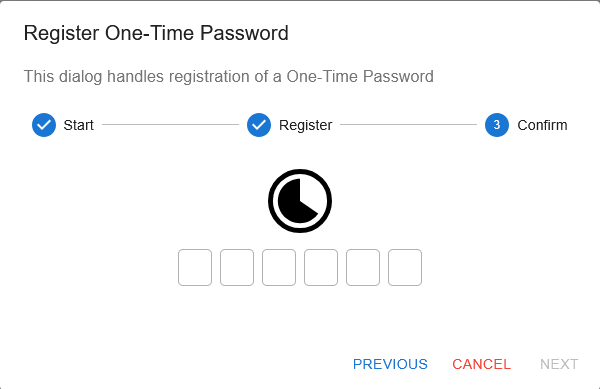
- It will leave you at the Authelia settings page. Go to audiobookshelf again.
- Click
Login with OpenIdagain. - Enter a newly generated one-time password.
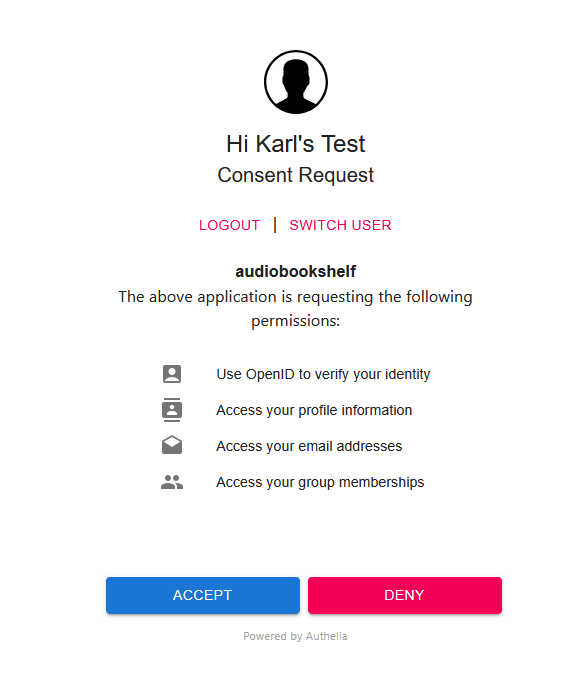
- Click
ACCEPT.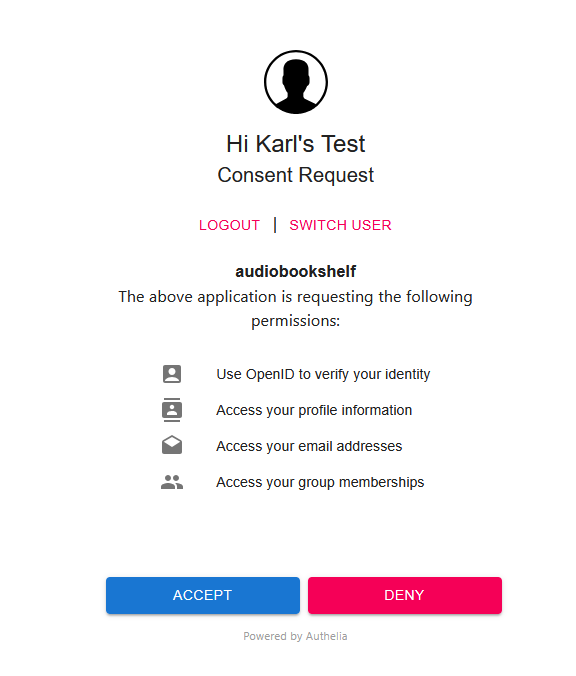
- You're In!